Connecting Your Email (Gmail)
Why this is the chapter that changes everything
Until now, Claude has been working in isolation. It can read your files and follow your skills, but it can't actually DO anything in your real tools. It can write a draft email, but you have to copy-paste it into Gmail yourself.
This chapter changes that. And here's why it matters so much: research shows the average person spends 28% of their workday on email. That's over 11 hours a week. Real estate agents get 80-150 emails a day. Lawyers spend two-thirds of their day on email. Office workers check their inbox every 6 minutes. It's the single biggest time thief across every industry.
We're going to connect Claude directly to your email so it can:
- Scan your inbox and tell you what actually needs your attention
- Read email threads to understand full context before replying
- Draft emails in your actual Gmail (ready for you to review and send)
- Find enquiries you missed, follow-ups that fell through the cracks, and things you forgot to respond to
Whether it's your work inbox or your personal one, this is usually the moment people go from "AI is interesting" to "I can't believe I didn't do this sooner."
What we're doing
Connecting Gmail to Claude using something called a connector (MCP). You'll see both words around, they mean the same thing.
First: what is a connector?
A connector (technically called MCP, which stands for Model Context Protocol) is a way for Claude to connect to your tools. Think of it as a universal adapter. We'll call them connectors throughout this course, but if you ever see "MCP" online or in Claude's settings, that's the same thing.
You know how you can buy a travel adapter that works in any country? A connector is like that, but for AI. It's a standard plug that lets Claude connect to different tools - Gmail, Google Drive, Xero, Notion, and hundreds more.
When you install a connector (just a small background app that runs quietly on your computer), it gives Claude a direct line to that tool. Claude can then read from it, write to it, and interact with it - all from the same chat window.
Connecting Gmail: step by step
Step 1: Open your settings
- Open Claude
- Go to Settings and look for Integrations or Connectors
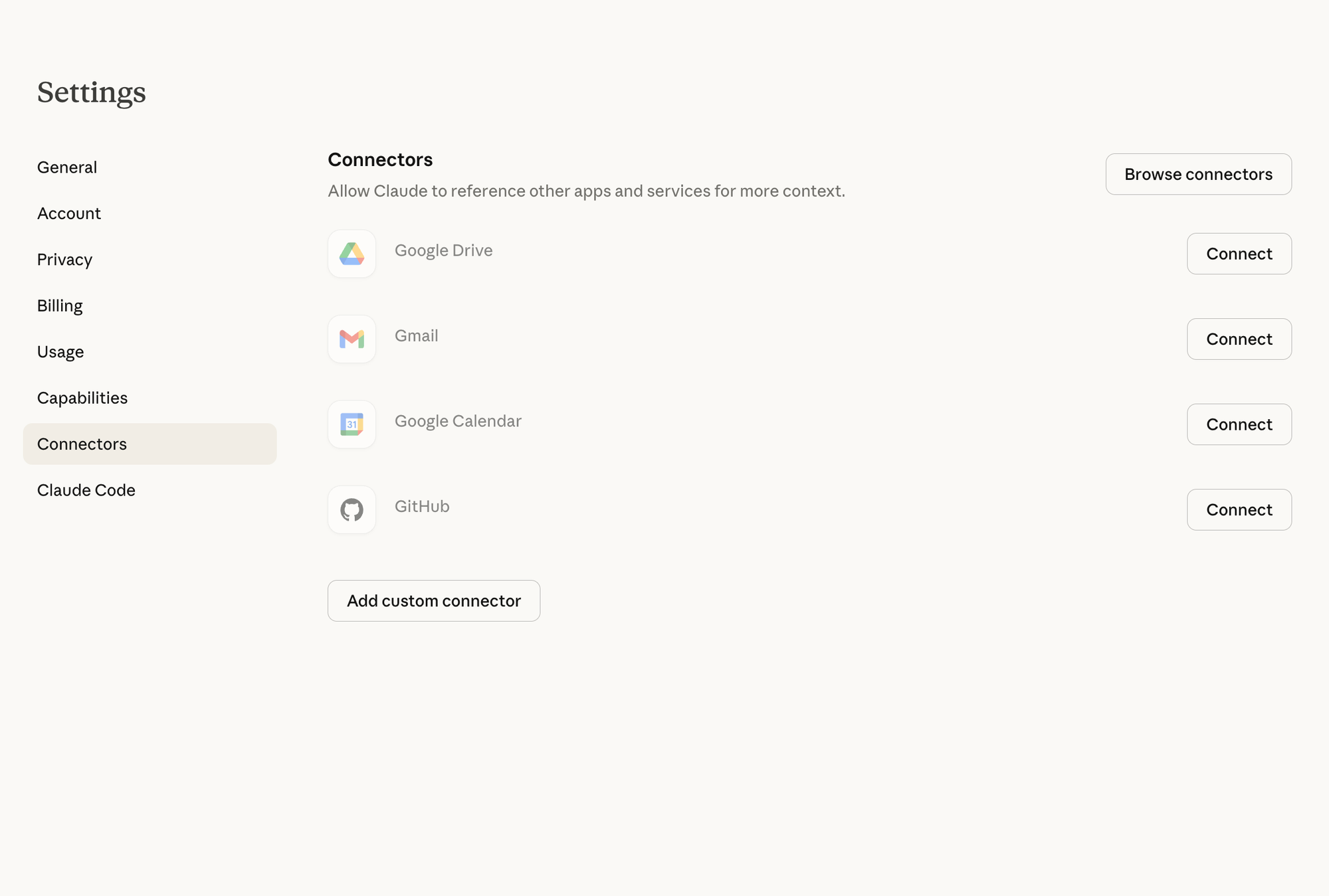
Go to Settings > Connectors. You'll see options for Google Drive, Gmail, Google Calendar, and more.
Step 2: Add Gmail
In the Integrations section, browse the available connectors.
- Find Gmail and click Connect
- Sign in with your Google account when prompted
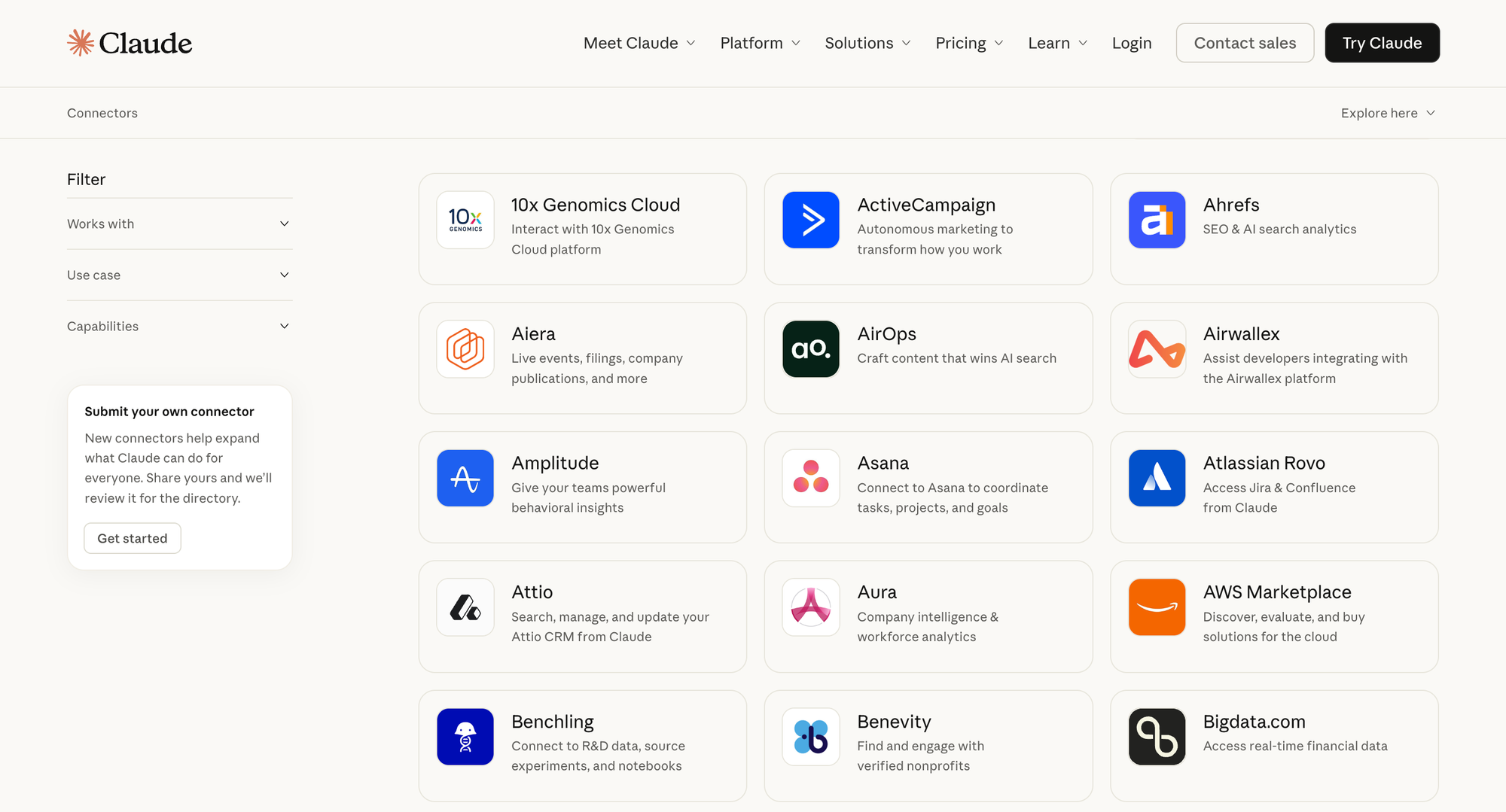
Find Gmail in the connectors list and click "Connect".
Step 3: Authorise access
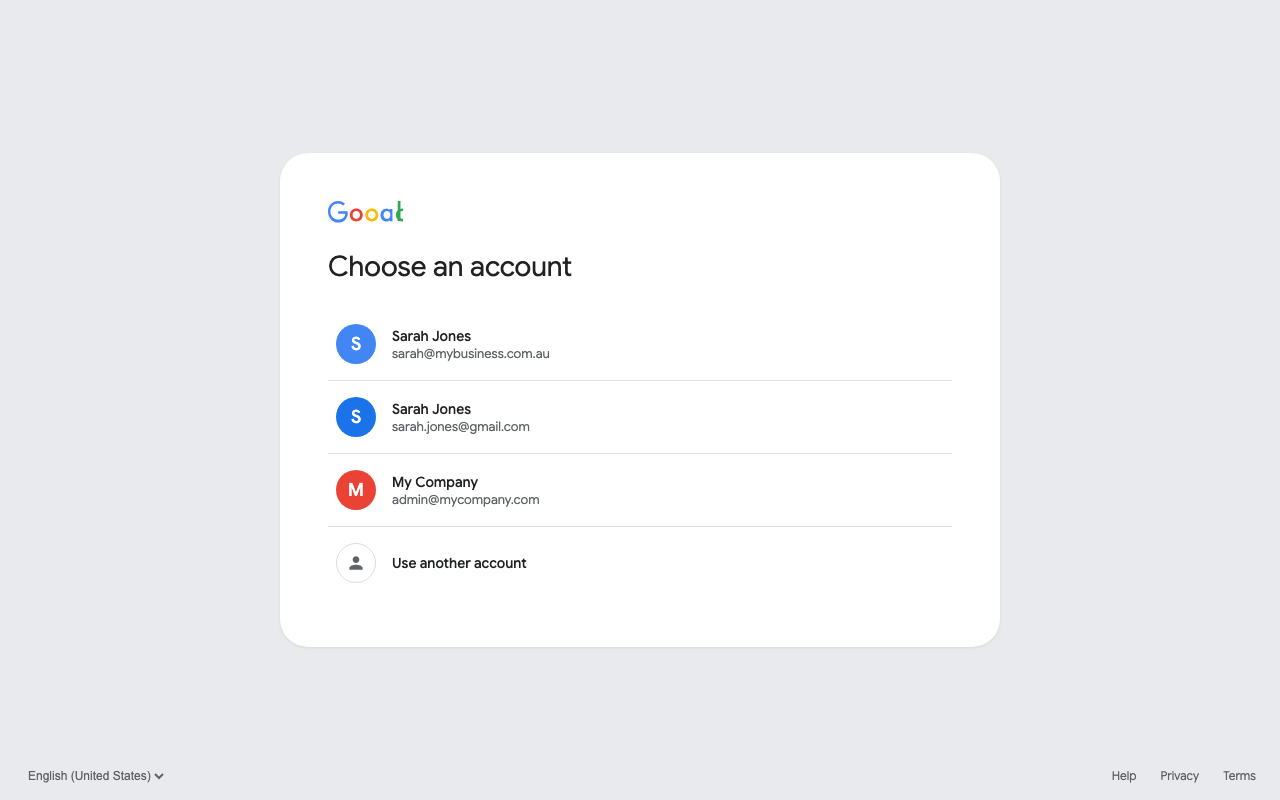
A Google sign-in window will pop up:
- Choose your Google account (the one with your business email)
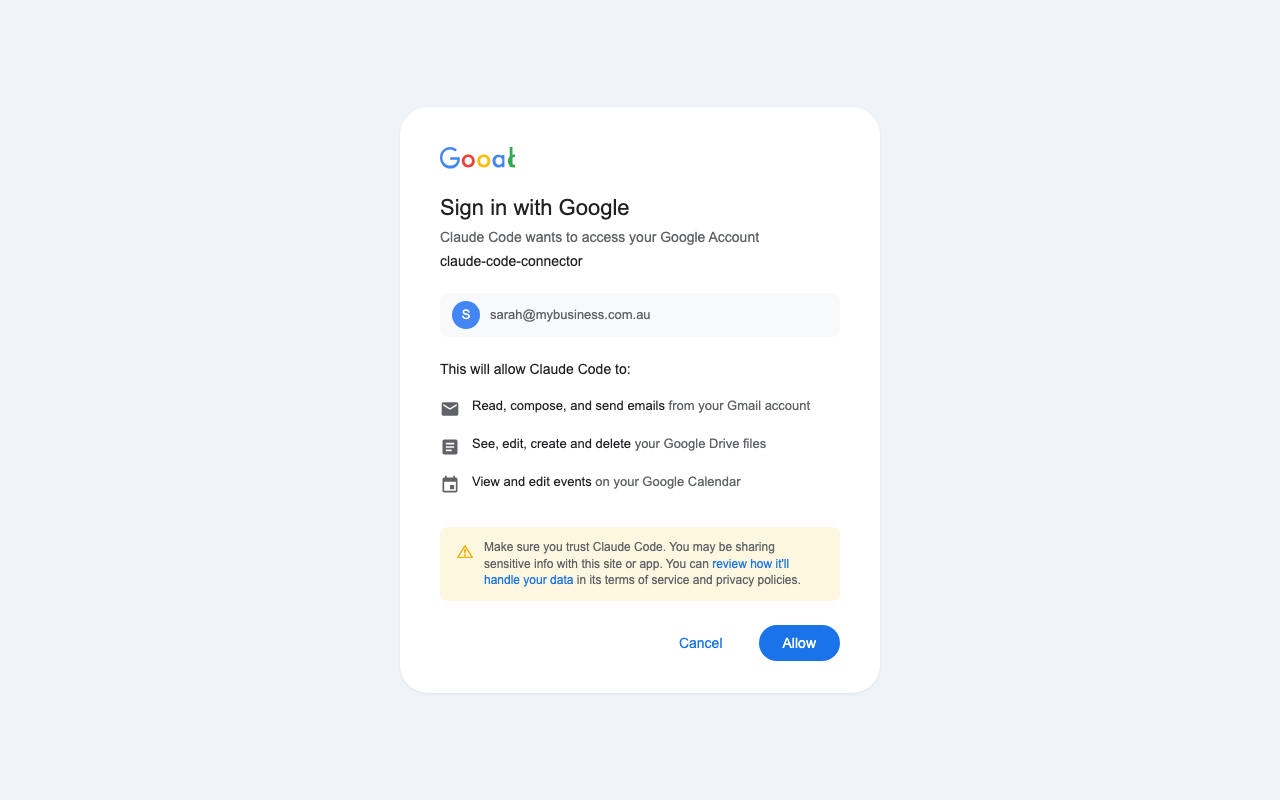
- Google will show you what Claude is asking to access (read emails, send emails, etc.)
- Click "Allow"
This is a standard sign-in permission (technically called OAuth). You'll see this pop-up every time you connect a new tool to Claude. It's safe. You're giving Claude a limited-access pass to your email, like giving someone a valet key to your car. They can drive it but they can't open the boot or change the locks. If you ever see "OAuth" in a help article or error message, it just means this sign-in step.
Stuck? Hit the purple ? button at the bottom right of this page and ask your question. The AI tutor knows this chapter inside out.
This is important. When you connect your email, Claude gets limited access. Here's what it can't do:
- Can't delete your emails
- Can't see your password
- Can't access any other Google accounts
- Can't send emails without you reviewing them first
- Can't do anything outside the access you grant it
You can disconnect it any time through your Google account settings. Takes 10 seconds.
Yes. Here's why: You're using a secure sign-in process, which means Claude never sees your password. You can revoke access any time (Google Account > Security > Third-party apps). Claude can draft emails but WE ALWAYS recommend reviewing before sending. Your emails stay on Google's servers - Claude reads them but doesn't store them.
Step 4: Test it
Once connected, try these in Claude:
Search my inbox for emails from Sarah Mitchell in the last 2 weeks
Read the latest email thread with my accountant
Draft a reply to the last email from Dave about the Henderson job. Keep it short, just confirm the start date is next Monday.
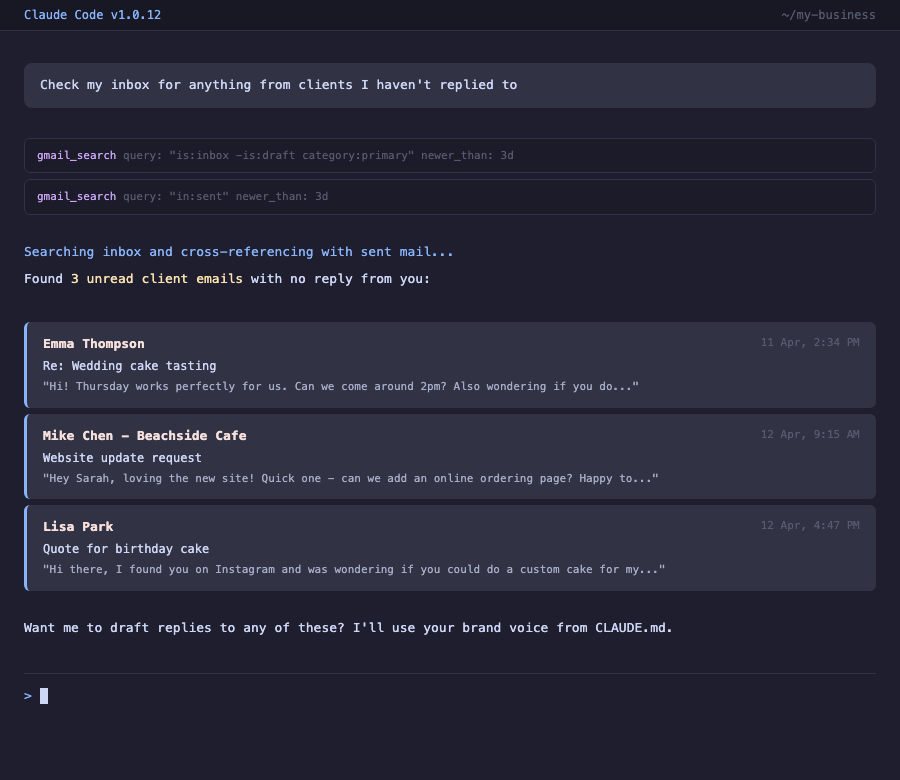
Notice that Claude drafts the email using the tone from your CLAUDE.md. It doesn't send it automatically. It creates a draft that sits in your Gmail Drafts folder, ready for you to review, edit if needed, and send manually.
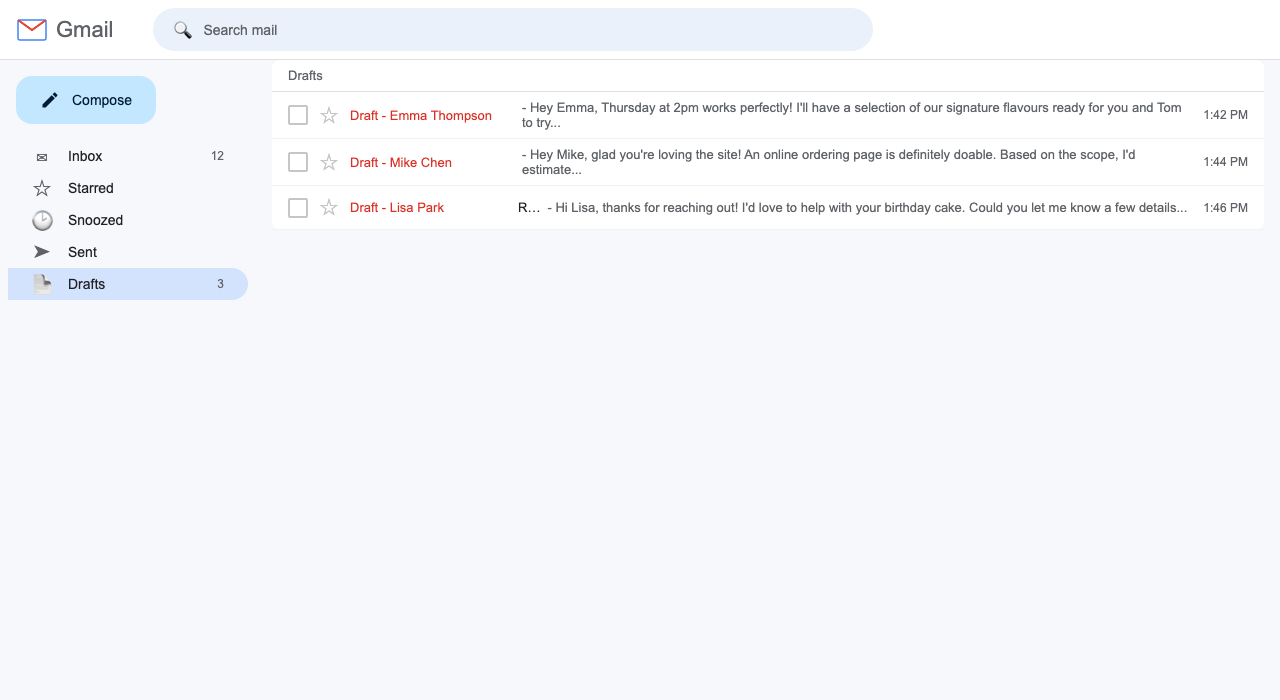
This is important: we always recommend reviewing emails before they go out. AI is good, but it's not perfect. You're the quality control.
What you can do now
With Gmail connected, your skills get way more powerful. Your follow-up skill from Chapter 5? It can now:
- Search your sent emails to find when you last emailed a client
- Check if they've replied
- If not, draft a follow-up using your skill's rules
- Put it in your Drafts folder ready to send
That used to be 10 minutes of manual work. Now it's one sentence in Claude.
The process is similar but the connector is different. Look for "Outlook" or "Microsoft 365" in Claude's connection browser. The authorisation uses Microsoft's sign-in instead of Google's. If there isn't a direct Outlook connection available, Chapter 10 covers the Zapier shortcut, which works with any email provider.
It CAN, but we strongly recommend against it. At least for the first few months. Here's why: AI sometimes gets tone wrong. It might miss context in a conversation. One bad email to a client can undo months of trust. Draft mode is the sweet spot. Claude does 90% of the work. You spend 10 seconds scanning it and hit send. Best of both worlds. Down the track, once your skills are dialled in and you trust the output, you might choose to auto-send certain low-risk emails (like appointment confirmations). That's a Course 2 topic.
What you just learned
- A connector is a universal adapter that connects Claude to your business tools
- Connecting Gmail takes about 5 minutes (sign-in permission)
- Claude can search, read, and draft emails, but you review before sending
- Your CLAUDE.md tone and skill rules apply to every email Claude drafts
- You can revoke access any time through your Google account settings
Try it yourself
- Connect Gmail to Claude via the connector
- Search your inbox for a specific client's emails
- Ask Claude to draft a reply to a real email
- Check the draft in your Gmail Drafts folder
- Review the tone - does it sound like you? If not, update your CLAUDE.md
Now imagine what else you could do
You've just connected your email. That's one tool. Think about what's possible now:
- Draft personalised cold emails to new leads. Give Claude a list of prospects and your pitch. Get 20 unique, personal emails in 5 minutes.
- Build a daily briefing. Every morning, ask Claude: "Scan my inbox, tell me what needs action today, and draft replies for anything urgent." Your whole inbox, triaged in 30 seconds.
- Send personalised emails to your whole mailing list. Not copy-paste blasts. Actually personalised. Different for each customer based on what they've bought or asked about.
- Never forget a follow-up. "Check if Sarah replied to my quote from last week. If not, draft a casual check-in." Done.
- Client onboarding emails. New client signs up? Claude drafts the welcome email, the first-steps guide, and the booking confirmation. All in your tone.
And that's just email. Imagine connecting your accounting, your calendar, your booking system, your stock management. All of them talking to Claude. All of them automated.
That's what The Toolkit covers.
You've finished The Basics
You've set up Claude, taught it your business, built reusable skills, learned to fix mistakes, and connected your email. That's more than most businesses have done with AI. Genuinely.
The Basics is a complete course on its own. You can stop here, keep using what you've built, and get real value from it every day.
The Toolkit — Chapters 9 to 21
Connect your accounting, calendar, Zapier, and Notion. Set up automations that run while you sleep. Invoice reminders at 7am. Auto-replies to new enquiries. Stock alerts. The works. It's all part of your course.
Continue to The Toolkit →