Welcome + Before We Begin
Welcome. Let's talk about what you're here for.
You're good at what you do. But the admin is killing you.
Emails, reports, paperwork, scheduling, chasing people for things, updating spreadsheets, remembering who you need to call back. Whether you run a business, work for someone, or just want your evenings back, the admin pile never stops growing.
This course is going to change that. But first, let's show you what AI can actually do.
What AI looks like right now (without any setup)
Imagine you type this into an AI tool:
In about 10 seconds, it spits out an email. And it's... actually decent. But read it closely. It's generic. It doesn't know your name, your business, your tone, your rules. It doesn't know that you never say "I hope this finds you well" or that you always sign off with your mobile number. It doesn't know Sarah's job details or what you quoted her.
That's what this course fixes.
By the end of these 8 chapters, that same AI will know your business inside out. It'll draft emails in YOUR voice, with YOUR pricing, following YOUR rules. Not generic. Yours.
Generic AI (no setup)
"Dear Sarah, I hope this email finds you well. I wanted to follow up regarding the quote I sent..."
Your AI after this course
"Hey Sarah, just checking in on the kitchen quote from last Tuesday. I've got a gap next week if you wanted to lock it in. Give me a buzz if you've got any questions. Cheers, Dave - 0412 345 678"
See the difference? One sounds like a robot. The other sounds like you. That's where we're headed. You'll set up the AI tool yourself in the next chapter.
Before we start: a bit of honesty.
This course takes effort. Real effort. You're learning a new tool and a new way of working. There will be moments where you feel confused, where something doesn't work the way you expected, or where you're not sure if you're doing it right.
That's completely normal. Every person who's done this has hit those moments. Including us. The difference is that on the other side of that learning curve, your business runs differently. Emails that used to take 20 minutes take 30 seconds. Follow-ups that used to fall through the cracks get handled automatically. Quotes that used to eat your evenings get drafted while you're still on the phone.
Set aside a solid couple of hours for the first few chapters. Don't try to rush through it between client calls. Give it your full attention, and you'll get through the setup faster than you think.
You'll need basic computer skills - creating folders, moving files, downloading apps. If you can send an email with an attachment, you've got what it takes. We're not teaching you to code. We're teaching you to talk to an AI that does the work for you.
The payoff is worth the effort. We promise.
Who is this course for?
This course is built for people who:
- Run a business, work for someone, or just want help with life admin
- Are spending too many hours on emails, reports, and paperwork
- Have heard about AI but don't know where to start
- Are NOT tech people and don't want to become one
- Want to actually DO this, not just read about it
That last point is important. This is not a course you watch. This is a course you DO. Every chapter has steps you follow on your own computer. By the end of each chapter, you'll have built something real. Not theory. Real tools that save you real time.
What you'll need
- A laptop or desktop computer (Mac or Windows, doesn't matter, just needs to be updated)
- Basic computer skills (you should be comfortable creating folders, moving files, downloading apps, and using a web browser. If you can send an email with an attachment, you'll be fine)
- An internet connection
- About $30/month for the AI tool once you're set up (free to start)
- 2-3 hours to work through the chapters (do them over a weekend or spread across a week)
- Willingness to try. You'll make mistakes. That's part of it. Chapter 7 is literally called "When AI Gets It Wrong." We've got you covered.
What you'll have by the end
When you finish these 8 chapters, you'll have:
- An AI assistant on your computer that knows your business inside out
- Reusable recipes for your most common tasks (quoting, emailing, follow-ups) that work perfectly every time
- Your email connected so your AI can search your inbox, read conversations, and draft replies in your voice
- The ability to fix things yourself when something goes wrong
No coding. No technical background. If you can send a text message, you can do this.
A few words you'll learn along the way
We use plain English throughout this course, but we'll also teach you the real technical terms as we go. That way, when you Google something or see a setting in Claude, you'll know what it means.
| What we call it | Technical name | What it means |
|---|---|---|
| Briefing file | CLAUDE.md | A document that tells Claude about your business |
| Working folder | Project directory | The folder on your computer where Claude works from |
| Skill / recipe | Skill file (.md) | Instructions for a specific task (quoting, emailing, etc.) |
| Connector | MCP | How Claude connects to tools like Gmail, Xero, Notion |
| Sign-in permission | OAuth | The pop-up that asks you to approve a connection |
| AI assistant / AI worker | Agent | An AI that can actually do things, not just chat |
Don't worry about memorising these now. We'll introduce each one properly when you need it, and keep reminding you as we go.
Who am I?
I'm Jackson. A business owner who is NOT a tech person.
I run a safari company from Australia. I hit the wall plenty of people hit: too much admin, not enough hours, and a feeling that AI could help but no idea where to actually start.
So I figured it out. Slowly. With a lot of trial and error. Now my AI handles my emails, quotes, invoicing, and client follow-ups, and I've won back 10+ hours a week.
This course is everything I wish someone had shown me on day one. No jargon. No fluff. Just "do this, then this, then this" until it works.
How this course works
Every chapter follows the same pattern:
- Why this matters - a quick explanation of why this step is important
- What we're doing - one sentence so you know what's coming
- Step by step - instructions for every click, with screenshots to guide you
- If you get stuck - troubleshooting tips for common problems
- What you just learned - a quick summary
- Try it yourself - a checklist to make sure it stuck
There's also a purple ? button at the bottom right of every page. That's an AI tutor that knows this course inside out. If you get stuck on anything, click it and ask your question. It'll help you through it.
Here's a preview of what it looks like when it's working
You open the AI app on your laptop. You type:
"New enquiry from Tom Henderson, wants his bathroom and kitchen redone, he's in Paddington."
In 30 seconds, your AI has:
- Checked your calendar for availability
- Drafted a warm reply in your tone with your availability
- Put it in your email drafts, ready for you to review and send
No copy-pasting. No templates. No switching between apps. One sentence, and it's handled. That's where you'll be by the end of this course.
Right. Let's make sure your computer is ready.
Before we start: getting your laptop ready
We need to make sure your computer can run the tools we're going to install. This takes 5 minutes.
Check 1: Is your operating system up to date?
Your operating system is the main software that runs your computer. On a Mac it's called macOS. On a Windows computer it's just called Windows. It needs to be up to date for the AI tools to work properly.
On a Mac:
- Click the Apple logo in the top left corner of your screen
- Click "About This Mac"
- Click "Software Update"
- If there's an update available, install it. This might take 15-30 minutes.
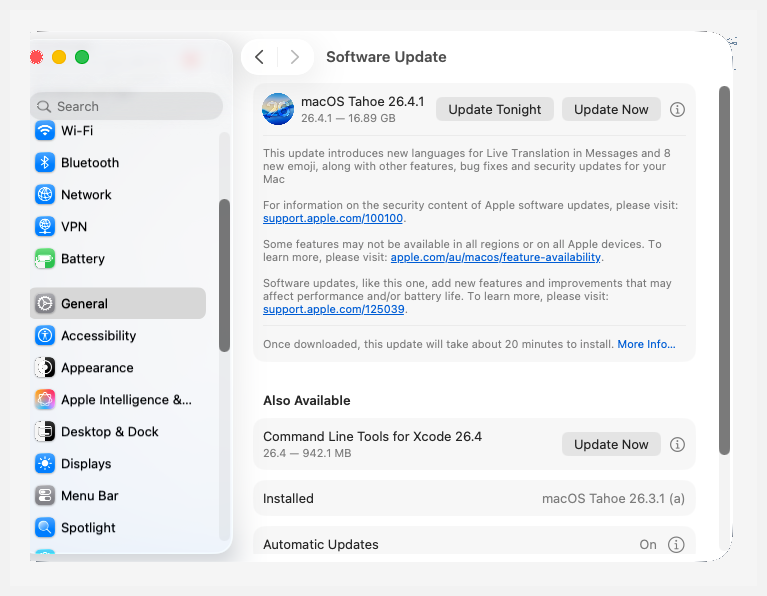
This is what the Software Update screen looks like on a Mac. Click "Update Now" if one is available.
On Windows:
- Click the Start button (bottom left)
- Click Settings (the gear icon)
- Click "Update & Security"
- Click "Check for updates"
- Install anything that's waiting
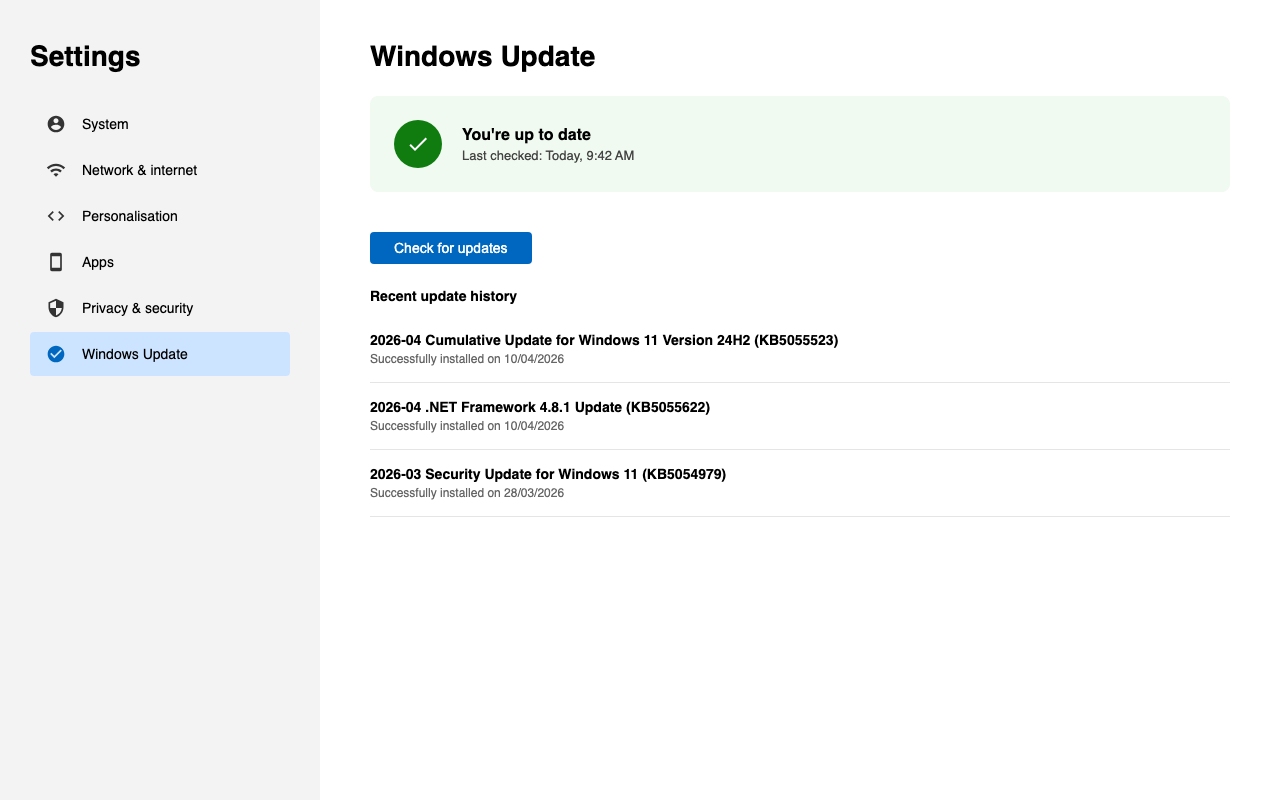
Check 2: Do you have enough storage space?
You need at least 5GB free (that's about 5,000 photos worth of space - not much).
On a Mac:
- Click the Apple logo > "About This Mac"
- Click "Storage" (or "More Info" then "Storage" on newer Macs)
- Look at how much space is available
On Windows:
- Open File Explorer
- Click "This PC" on the left
- Look at the bar under your C: drive
Don't panic. Quick wins: Empty your trash/recycle bin (right-click the icon, "Empty"). Clear your Downloads folder - chances are there's stuff in there from years ago. Delete apps you don't use - that game you downloaded in 2021 is taking up 3GB.
If you're really stuck, screenshot your storage screen and paste it into Claude (once we've installed it in the next chapter). Say "I'm trying to free up space. Here's my storage. What should I delete?" Claude can read screenshots and help.
Check 3: Do you have a Google account? (optional)
If you use Gmail, you've already got one. A Google account is handy later if you want to connect your email or use Google Drive for backup, but it's not required to get started.
What you just learned
- This course is built for people who aren't technical. If you can send an email, you can do this.
- By the end, you'll have a personalised AI assistant, connected tools, and reusable skills.
- Your laptop needs to be up to date with at least 5GB free.
- A Google account is optional but useful for connecting email later.
Try it yourself
- Check your operating system is up to date
- Confirm you have 5GB+ free storage
- (Optional) Make sure you have a Google account for later
- Grab a coffee. You're about to change how your business runs.