Installing Claude
Claude is an AI assistant made by a company called Anthropic. It's like Siri or Google Assistant, but much smarter. You type questions or instructions in plain English, and it responds. It can write emails, create quotes, summarise documents, draft social media posts, and hundreds of other things.
There are two ways to use it:
- The website (claude.ai): Free to try. Good for quick questions. But it can't access files on your computer or connect to your business tools.
- The desktop app (what we're installing): This is the one that can read your files, connect to your email, and actually do things in your business. This is what we use.
Why this matters
In the last chapter, you got your laptop ready - updated your system and made sure you have enough space. Now we're installing the main tool.
Claude is the app that everything in this course runs on. Think of it as your new business assistant's office. Without it, you're just typing questions into a website. With it, your AI can read your files, connect to your tools, and actually do things in your business.
The website version (claude.ai) is fine for asking questions. But it can't read files on your computer, can't connect to Xero, can't draft emails in your Gmail. The desktop app can.
What we're doing
Downloading and installing Claude on your computer. Takes about 5 minutes.
Step by step
Step 1: Download the app
Go to claude.ai/download in your web browser.
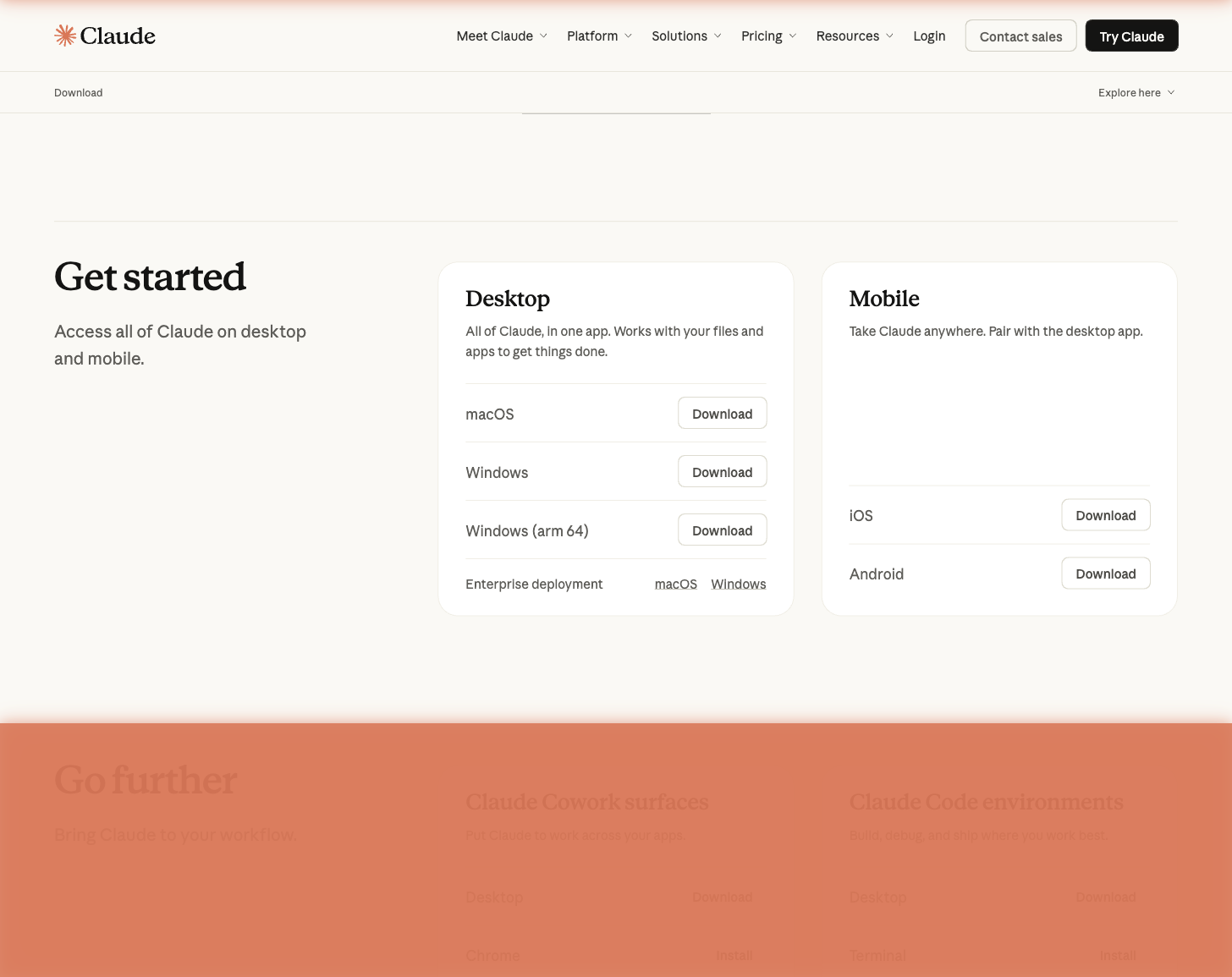
Click the download button for your computer:
- Mac: Click "Download for Mac"
- Windows: Click "Download for Windows"
The file will download to your Downloads folder.
Step 2: Install it
On a Mac:
- Open your Downloads folder
- Double-click the Claude file (it'll be called something like
Claude.dmg- that's just the file type Mac uses for app installers, nothing to worry about) - A window pops up. Drag the Claude icon into the Applications folder.
- Done.
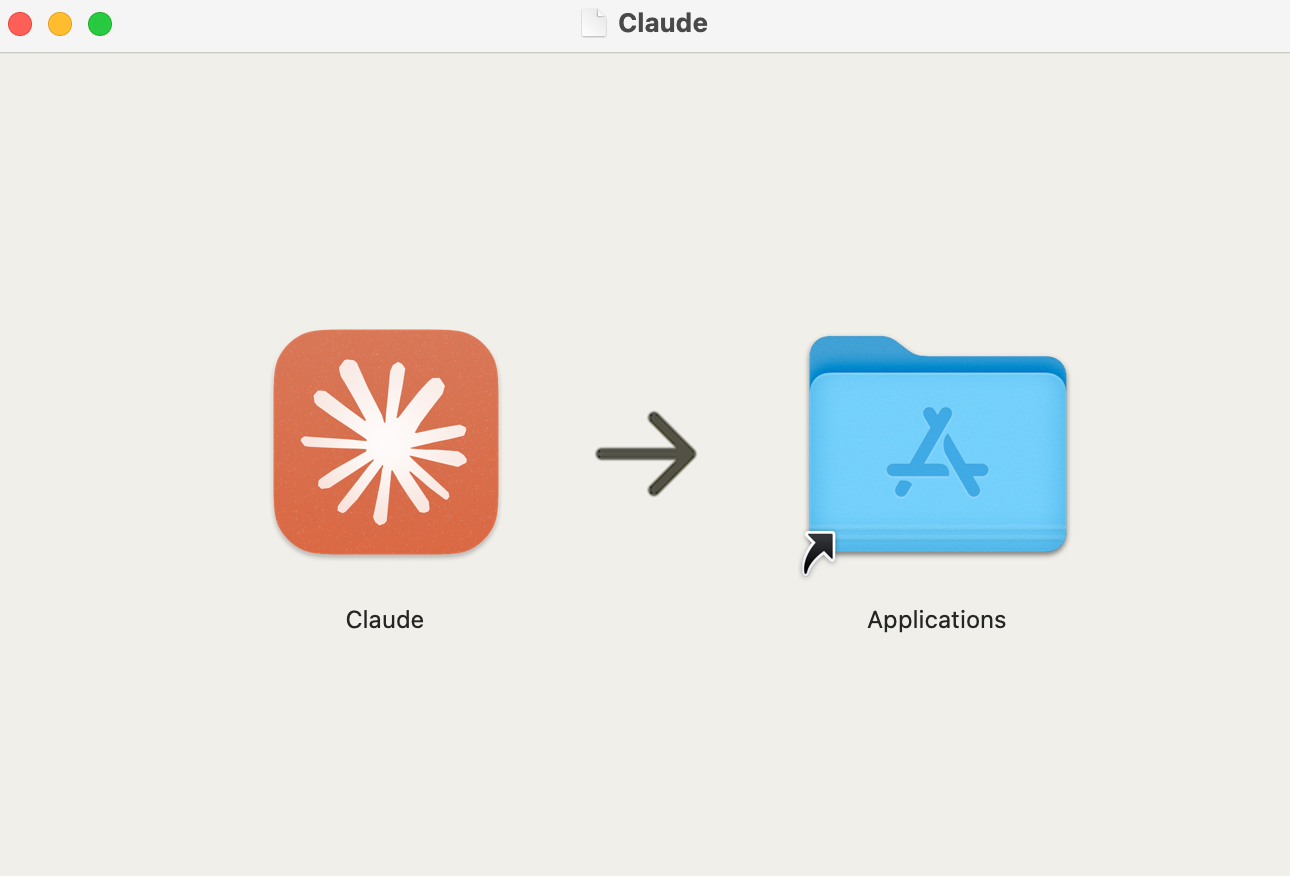
This is what the installer looks like. Just drag the Claude icon onto the Applications folder.
On Windows:
- Open your Downloads folder
- Double-click the Claude installer (
.exefile - that's just the file type Windows uses for installers) - Follow the prompts. Click "Next" a few times.
- Done.
Stuck? Hit the purple ? button at the bottom right of this page and ask your question. The AI tutor knows this chapter inside out.
Step 3: Install the command line tools (Mac only - required!)
Claude Code will NOT work on your Mac until you do this. It only takes a few minutes and you never have to do it again. If you're on Windows, skip to Step 4.
Claude needs a small piece of software called "command line tools" to work properly on your Mac. It's free, made by Apple, and you only do this once.
This next bit looks technical. It's not. You're going to copy one line of text and paste it into a window. That's it. Takes 30 seconds. You won't need to do anything like this again in the course.
Here's exactly what to do:
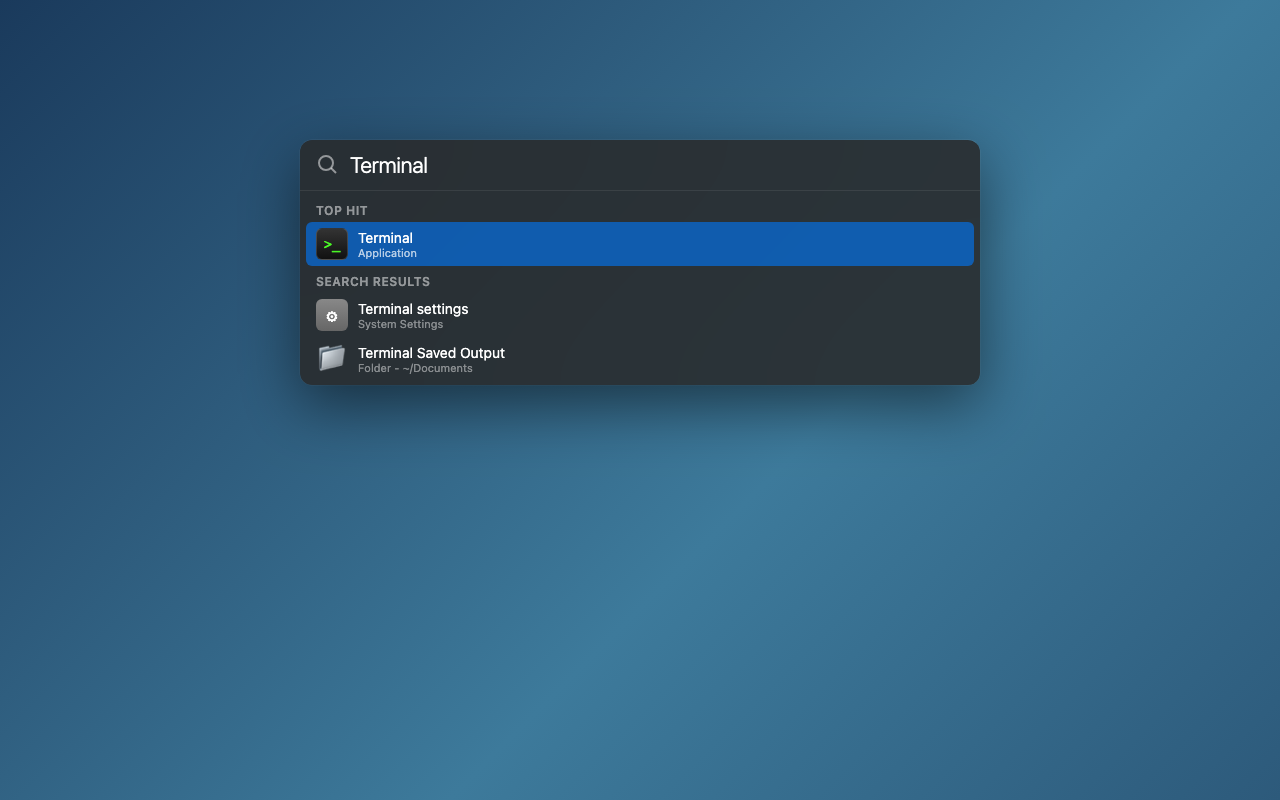
3a. Hold down the Cmd key on your keyboard (it's next to the space bar, has a ⌘ symbol) and press the Space bar at the same time. A search box appears in the middle of your screen.
3b. Type the word Terminal and press Enter. A window opens with text in it. Don't worry about what it looks like. You're going to type one thing and close it.
3c. Click inside the Terminal window. Copy this line and paste it in:
To paste: hold Cmd and press V.
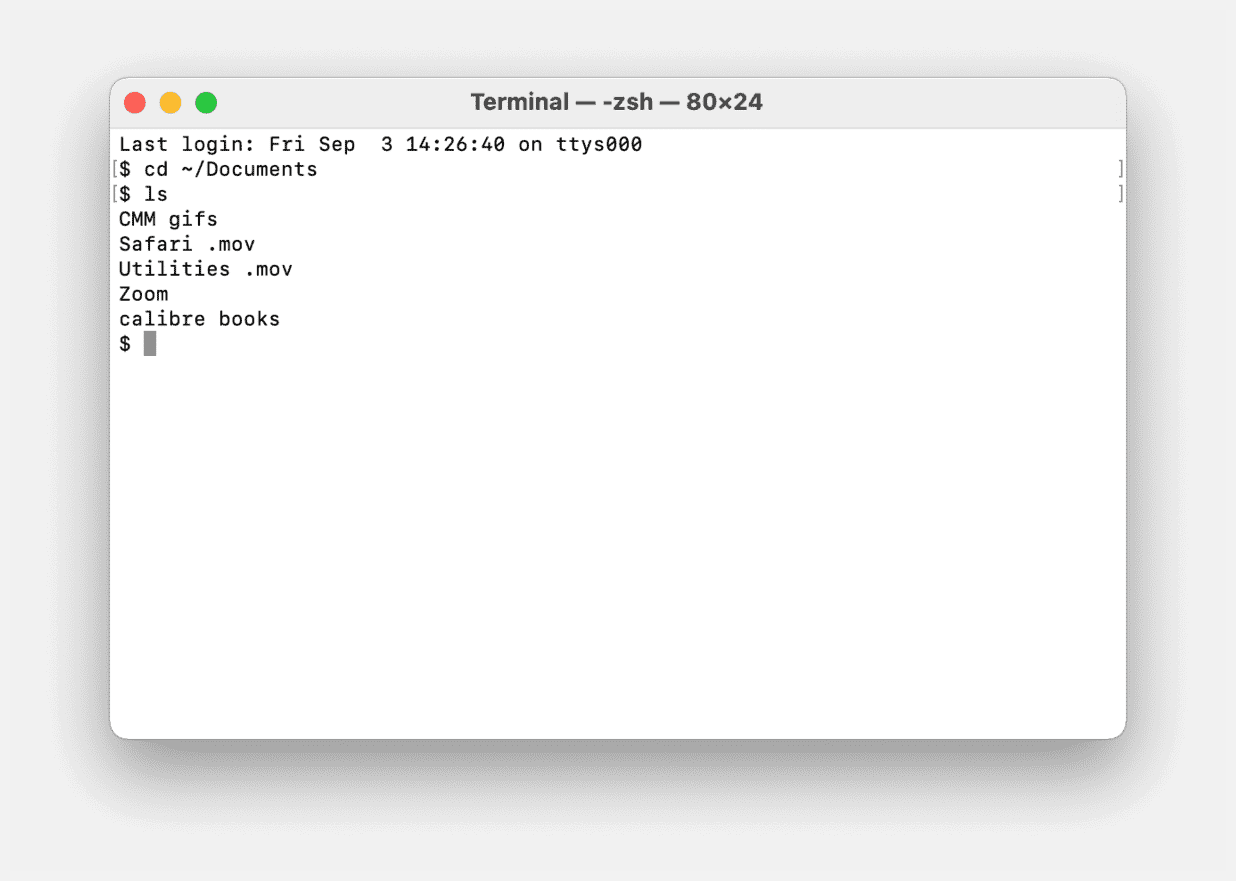
This is what Terminal looks like. Just paste the command and press Enter.
3d. Press Enter. A popup appears asking to install. Click Install.
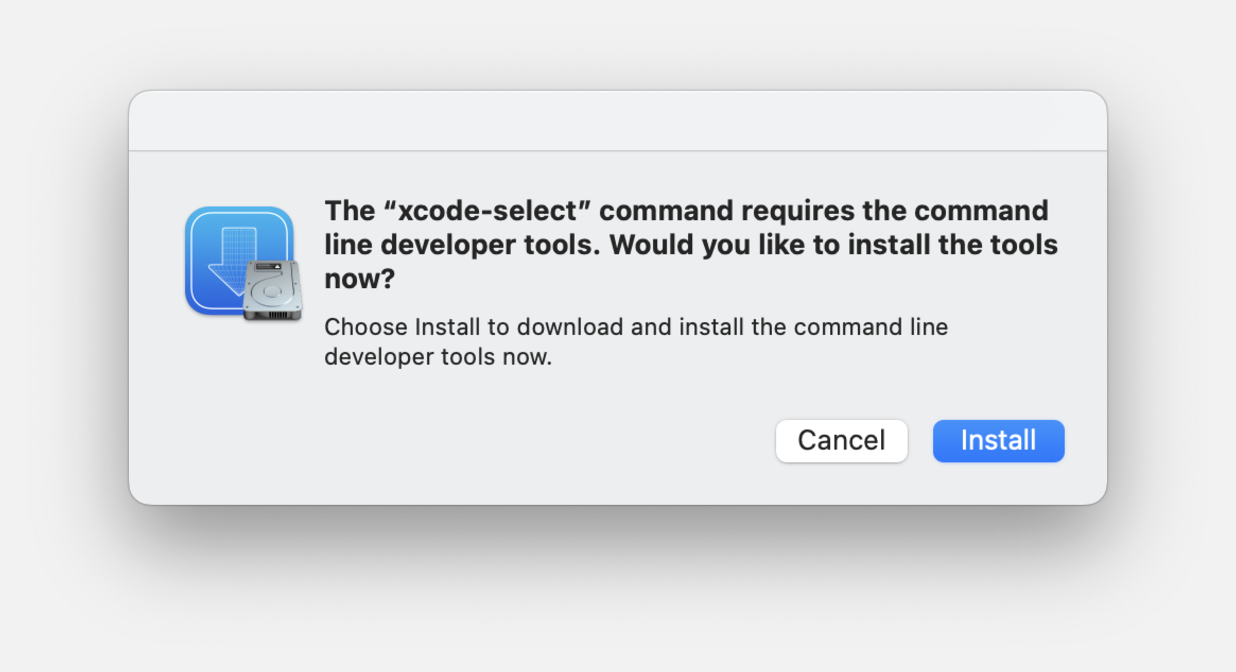
Click "Install" when this popup appears. It takes a few minutes.
3e. Wait a few minutes for it to finish. You'll see a progress bar.
3f. Once done, close Terminal (red circle, top left). You never need to open Terminal again.
A small set of tools that Claude needs to manage files on your computer. Think of it like installing a printer driver before you can print. You do it once and forget about it.
Great, your Mac already has them. Close Terminal and move on.
Close that page. Go back to Terminal and try the command again. Sometimes it takes two attempts. If it keeps happening, restart your Mac first, then open Terminal and try one more time.
Step 4: Open Claude
Before you open Claude: If you're on a Mac, make sure you've done Step 3 above. Claude Code won't work without those command line tools installed.
On a Mac: Open your Applications folder (or use Spotlight - press Cmd + Space, type "Claude", hit Enter)
On Windows: Find Claude in your Start menu, or double-click the desktop icon.
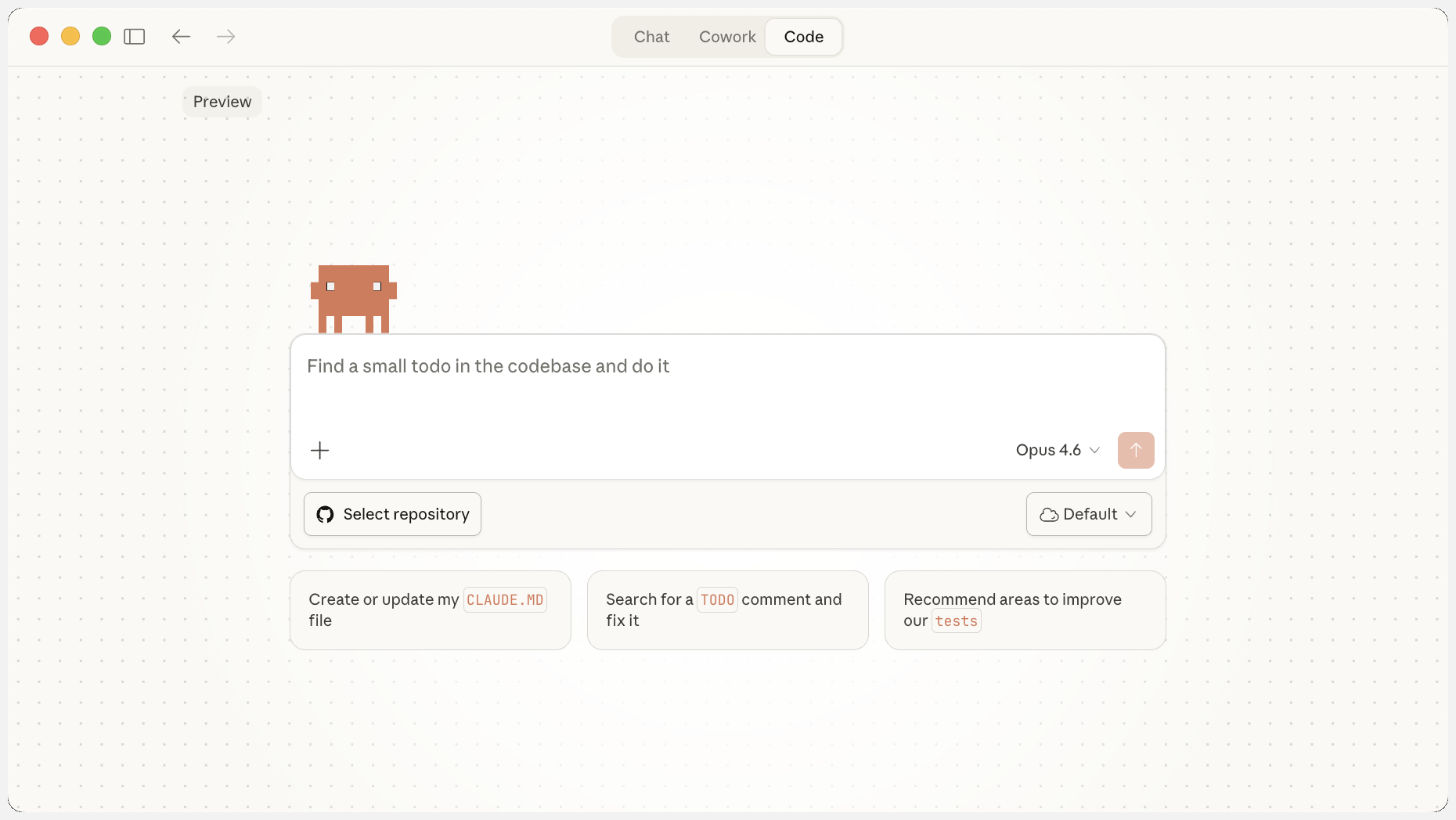
The Claude app with the Code tab selected. Notice the three tabs at the top (Chat, Cowork, Code) and "Select folder" at the bottom.
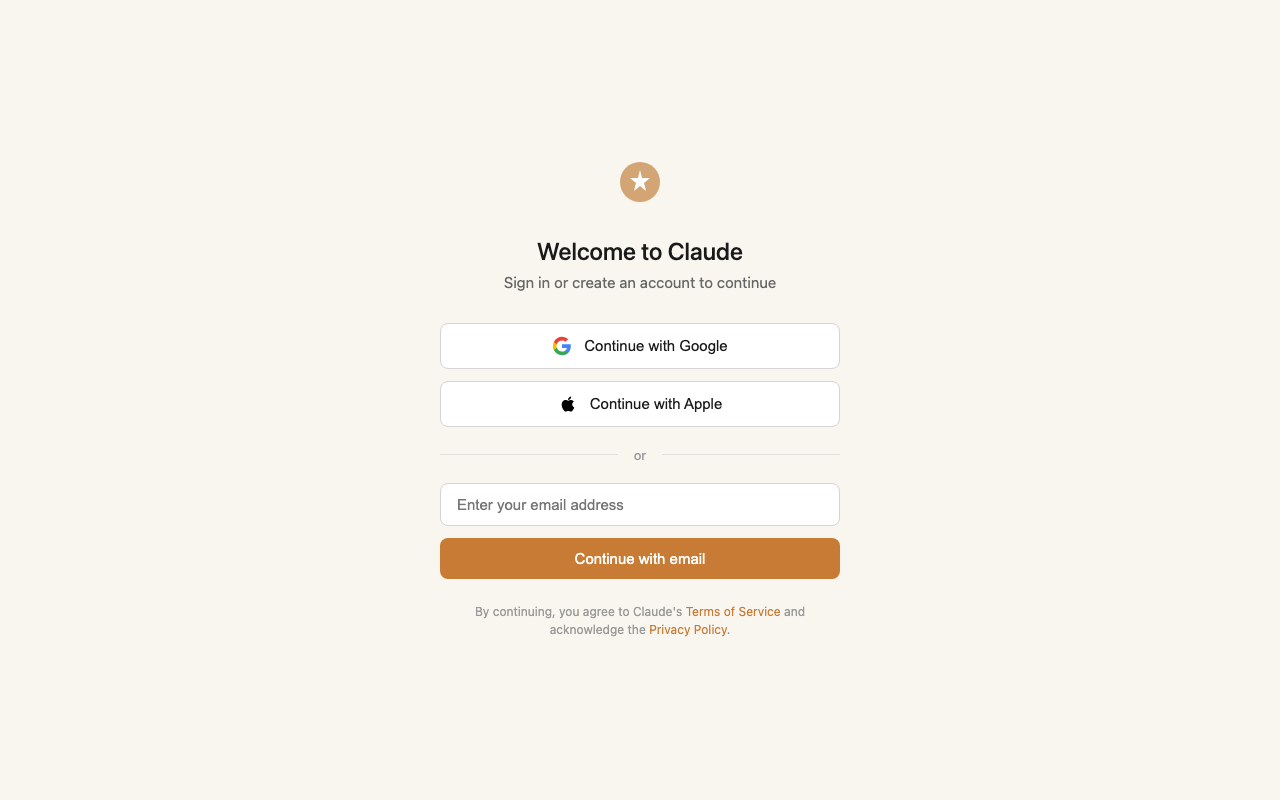
Step 5: Create your account (or sign in)
If you already have a Claude account from using the website, sign in with the same email.
If you're new:
- Click "Sign up"
- Enter your email
- Create a password
- Verify your email (check your inbox, click the link)
Finding the Code tab
Once you're signed in, look at the top of the screen. You'll see tabs: Chat, Cowork, and Code.
Click Code. This is where your AI assistant lives for the rest of this course.
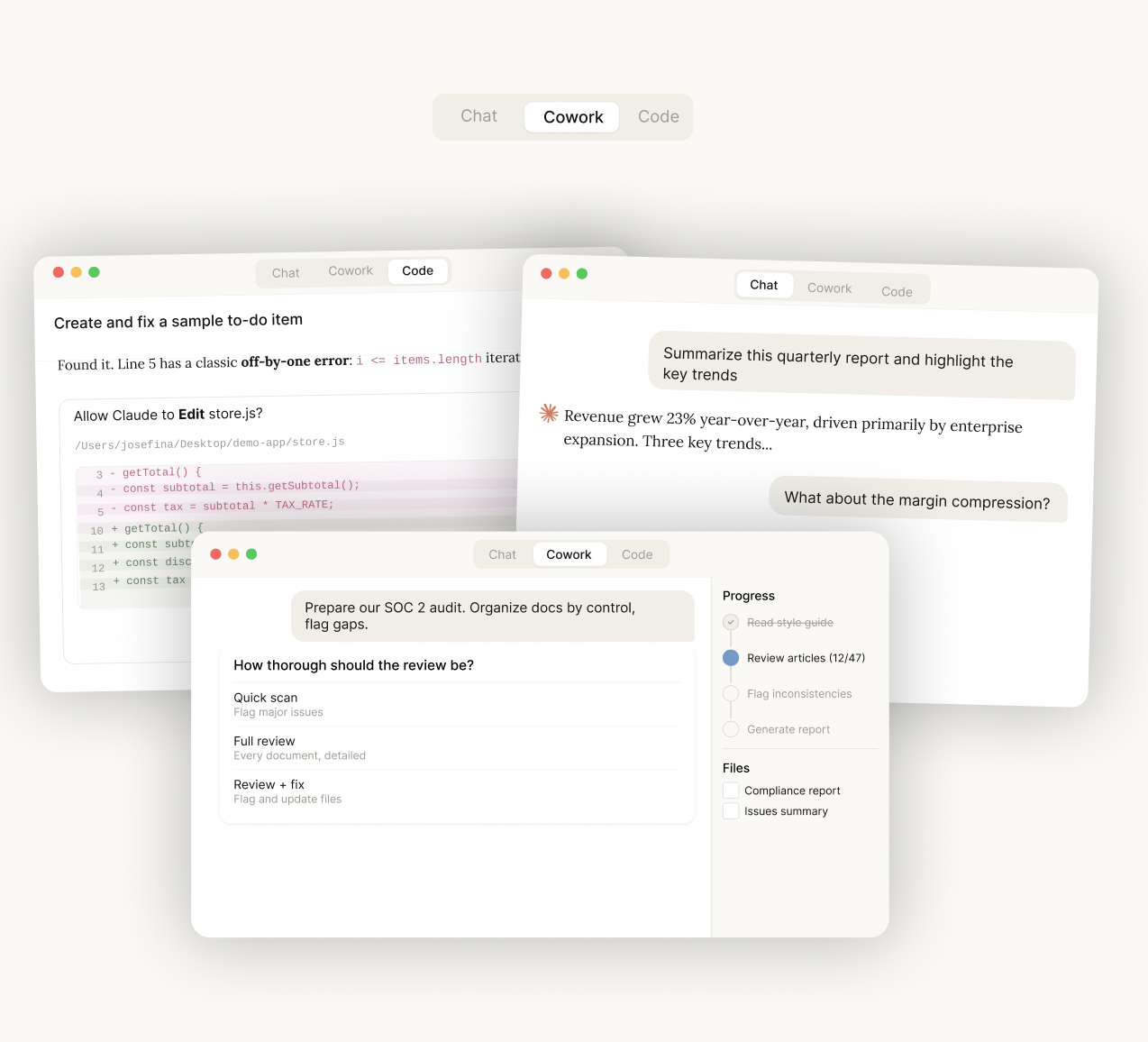
The three tabs: Chat (quick questions), Cowork (Claude does whole tasks on your files, no terminal), and Code (the workspace this course uses).
Chat is for quick questions. Like texting a smart friend. Quick and easy, but it can't create files or manage your business folder.
Code is your business workspace. It reads your files, creates documents, builds skills, connects to your tools, and does real work in your business. This is the one we use throughout this course.
Cowork is Anthropic's tab built for non-technical people. Claude reads, creates and edits files in a folder you pick, drafts emails, and runs whole multi-step jobs, all in plain English with no terminal. It's a genuinely good option. We use Code in this course because that's where your briefing file, skills and connectors come together most fully, but if you'd rather not touch a terminal-style window, you can do most of this course's work in Cowork too.
Why we use Code for everything
You might wonder why we don't just use Chat or Cowork. Here's the short version: Code is the only tab that can properly manage your business files.
In Code, Claude can create skill files, update your briefing document, save meeting notes, build templates, and organise your entire business folder. You tell it what to do in plain English and it does it. You never need to open a text editor or manually create files.
Chat can answer questions but it can't save anything. Cowork can do real work on your files too (it's the friendlier, no-terminal option), but Code gives you the most direct control over building and managing the skill files this course leans on.
Code gives you the full picture. You see what Claude is doing, you approve changes, and everything stays organised in your folder. That's why we use it.
You've probably heard people talk about "AI agents." It sounds complicated. It's not.
A chatbot answers questions. You ask, it responds. That's it. ChatGPT in its simplest form is a chatbot.
An agent does things. It can read your files, create documents, connect to your email, update your records, and take real actions in your business. It doesn't just talk about doing work, it actually does it.
When you use Claude in Code mode with a briefing file and skills, you're building an agent. Your agent knows your business (briefing file), knows how to do your tasks (skills), and can connect to your tools (connectors/MCP). That's all an agent is: an AI that can act, not just chat.
You'll also hear people say "copilot", "AI assistant", "AI worker", or "digital employee." They all mean roughly the same thing. In this course, we call it your AI assistant, but under the hood, you're building an agent.
What about "multiple agents"? Sometimes you'll hear people talk about "getting multiple agents to do the work" or "agents working together." All that means is splitting jobs across more than one AI worker. Think of it like having different employees with different roles. One agent checks your inbox, another drafts invoices, a third chases overdue payments. Each one has its own instructions and runs its own tasks. You'll see this in action in Course 2 when we build automated workflows.
Step 6: Your first conversation
Let's make sure it works. Type this into the chat:
Hi, I run a small business. Can you help me write a quick email to a client who hasn't paid their invoice in 30 days?
Hit Enter. Watch what happens.
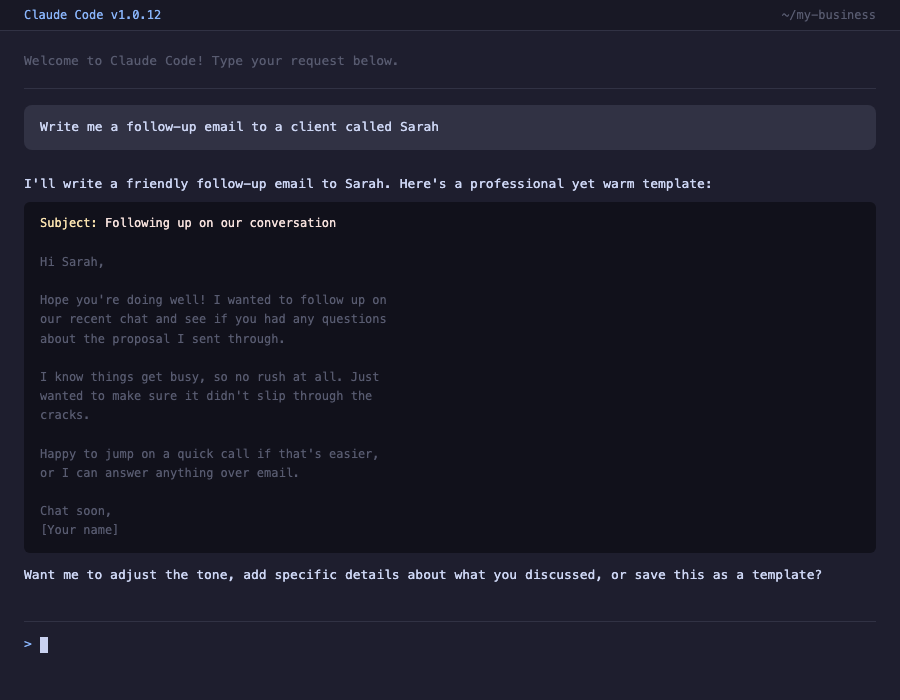
Pretty good, right? But notice something: it wrote a generic email. It doesn't know your business name, your tone, your client's name, or how you normally handle late payments. That's because right now, Claude doesn't know anything about YOU.
That's what we fix in the next chapter.
Claude has a few options:
Free: Good for testing. Limited number of messages per day. Fine for this chapter.
Pro (~$30 AUD/month): What we recommend. Unlimited messages (within reason), access to better AI models, and the features we'll use throughout this course.
Team (~$36 AUD/month per person, USD $25): For teams of 5 or more. Same as Pro but with shared billing and admin controls.
Start on Free to make sure you like it. Upgrade to Pro when you're ready to connect tools and build skills (Chapter 5 onwards). The way to think about it: Pro costs about the same as one hour of a virtual assistant. And it works 24/7.
Fair question. Here's the simple version:
ChatGPT is great for quick questions. "Write me a social media post." "Summarise this article." It's a smart chatbot.
Claude can do all that, but it can also connect directly to your business tools. Your email, your accounting software, your calendar, your files. It can actually DO things in your business, not just talk about doing them.
That's the difference. ChatGPT answers questions. Claude runs your admin.
The thinking and principles in this course work with any AI. But the step-by-step instructions use Claude because that's what works best for this kind of business setup.
Let's be upfront about the ongoing costs:
- Claude Pro: ~$30 AUD/month (the main tool, this is the one you need)
- Google Drive: Free (15GB included with any Google account)
That's it for Course 1. About $30/month. Less than a single hour of a virtual assistant, and it works 24/7. We'll introduce other tools in Course 2 if you decide to go further.
Mac: If you get a message saying "Claude can't be opened because it's from an unidentified developer":
- Go to System Settings > Privacy & Security
- Scroll down - you'll see a message about Claude being blocked
- Click "Open Anyway"
- It'll ask one more time. Click "Open."
Windows: If Windows Defender blocks it:
- Click "More info" on the warning
- Click "Run anyway"
Still stuck? Screenshot the error and paste it into Claude on the website (claude.ai). Say "I'm trying to install Claude and getting this error. How do I fix it?" The AI can help you troubleshoot even before the app is installed.
What you just learned
- Claude is different from the website - it can connect to your files and tools
- The free plan works for testing, Pro (~$30 AUD/month) is what you'll want for real use
- Right now Claude is generic - it doesn't know your business. We fix that next.
- When things go wrong, you can screenshot the problem and ask Claude to help fix it (even on the website version)
Try it yourself
- Download and install Claude
- Create an account or sign in
- Type your first message in Claude (try asking it to help draft something for your business)
- Notice how the response is generic - it doesn't know your business yet. That's what we fix next.