Setting Up Your AI Brain
Why this matters
In Chapter 3, you set up your briefing file (CLAUDE.md) and Claude reads it from your working folder. Now let's organise that folder properly and understand how Claude's memory works.
As you go through this course, you'll be creating skill files (.md files that teach Claude how to do specific tasks), templates, notes, and other documents. We need a structure inside your working folder (your project directory from Chapter 3) to keep things tidy.
What we're doing
Organising your working folder with a clear structure, and learning how Claude's memory works between conversations.
Step 1: Ask Claude to set up your folder structure
Make sure Claude is pointed at your business folder (from Chapter 3). Start a new session and type this:
Claude creates all three folders for you. You don't need to create them manually.
Step 2: Check it worked
Open Finder (Mac) or File Explorer (Windows) and navigate to your business folder (the one from Chapter 3). You should see three new folders inside it:
📄 CLAUDE.md (from Chapter 3)
📁 Skills/ (Claude just created this)
📁 Templates/ (Claude just created this)
📁 Notes/ (Claude just created this)
If you see all three, you're good. If not, go back to Claude and tell it: "The folders weren't created. Can you try again?"
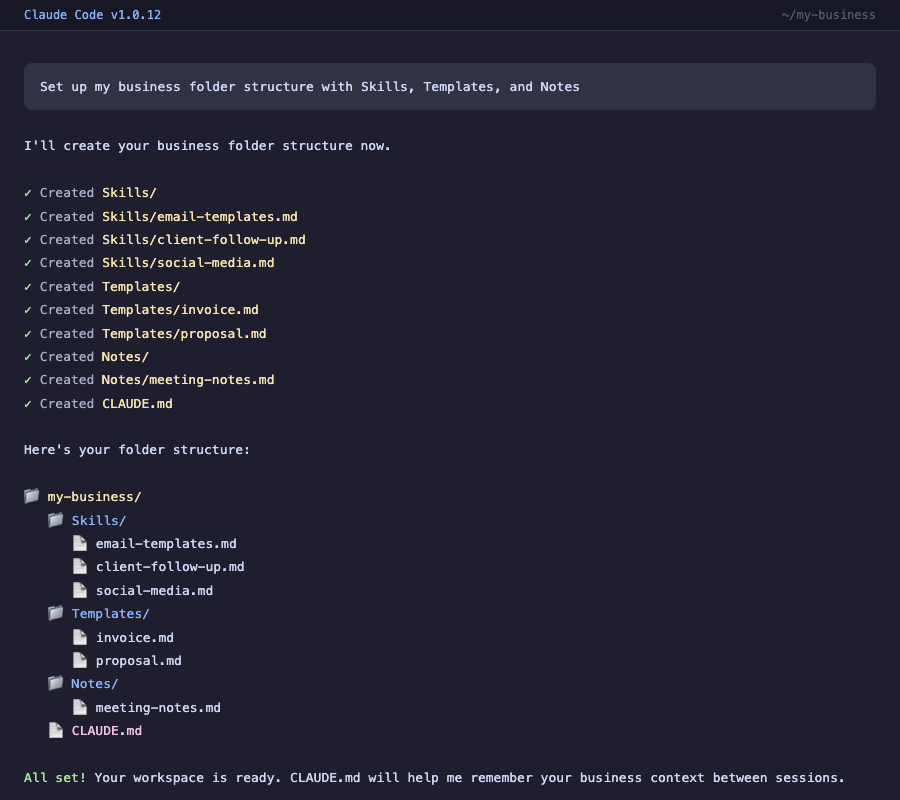
What each folder is for
- Skills/ - Your recipe book. Each skill is a .md file that tells Claude how to do a specific task. We build these in Chapter 6.
- Templates/ - Reusable documents. Email templates, quote layouts, anything you use repeatedly.
- Notes/ - Meeting notes, call summaries, and anything Claude saves for you over time.
Your CLAUDE.md is already in the folder from Chapter 3 and loads automatically. These subfolders are for everything else.
You could. Claude would still find things. But having separate folders keeps things tidy as your collection grows. When you have 10 skills, 5 templates, and 20 sets of meeting notes, you'll be glad they're not all in one pile.
How Claude's memory works
Here's the key thing to understand: Claude doesn't secretly remember your chats. What it "remembers" next week is whatever got written down in a file in your folder. Your CLAUDE.md is the main one, and you can keep a simple notes or memory file alongside it. If it's in a file, Claude reads it every session. If it was only said in a chat and never saved, it's gone when that chat ends.
That's why this works the way it does. When you say "remember this," what you actually want Claude to do is write it to a file. So tell it: "add that to my CLAUDE.md" or "save that to my notes file." Then ask "what do you know about my business?" and it'll tell you everything that's written in those files. The files are the memory, not the chat.
Try it now. Tell Claude something new about your business:
Then start a new session in the same folder and ask:
It should mention your CLAUDE.md details AND the new thing you just told it. That's memory working.
Optional: Google Drive for backup and multi-device
If you only use one computer, you can skip this section. Your folder and memory are stored locally already.
If you use multiple devices or want an extra backup of important files, you can install Google Drive for Desktop and keep copies of your key documents there. Go to google.com/drive/download to set it up. It's free (15GB) and works well with Gmail and Google Calendar, which we connect in Chapter 8.
The big idea
Your AI now has a home. Your CLAUDE.md loads automatically every session. Claude remembers what you tell it. Your skills, templates, and notes all have a place. As you go through the next few chapters, everything you build will slot into this structure.
When you're ready to bring on a team member, they can work from the same project, the same brain, the same rules, the same tone. That's the difference between "everyone uses AI differently" and "my business has an AI system."
What you just learned
- Your CLAUDE.md loads automatically (set up in Chapter 3)
- Skills, Templates, and Notes folders organise everything else
- Claude remembers things between conversations automatically
- You can tell Claude to "remember" anything important
- Google Drive is optional but useful for backup and multi-device access
Try it yourself
- Ask Claude to create your Skills, Templates, and Notes folders
- Ask Claude what it knows about your business
- Tell Claude something new and check it remembers next session